

Automated Lecture Recording
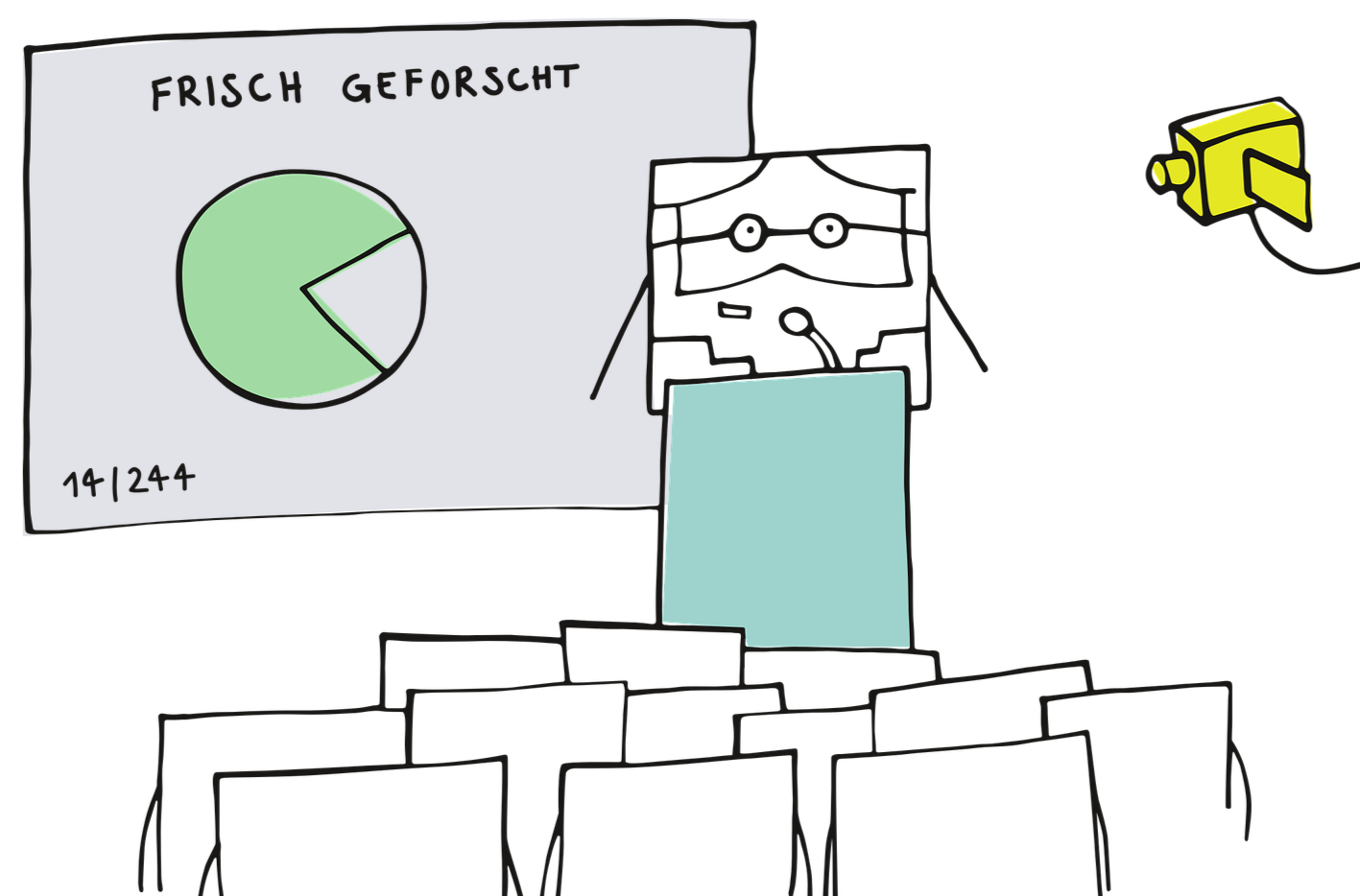
The automated lecture recording feature records all selected sessions of your course and makes them available on ILIAS.
Since September 2022, automated lecture recording can be enabled directly when creating the course in CAS Campus. Alternatively, this can be done at any time afterward via the OpenCast Recording Management (OC-AV). The service is provided by the KIT Library.
You can find a current list of equipped lecture halls in the recording management system.
In the lecture halls, recording of the projector signal (e.g., a connected laptop displaying slides or a visualizer) is always available. Which lecture halls also provide a recording of the whiteboard is indicated by the “Camera” attribute in the room properties within the Campus Management room hierarchy, under the “Lecture Recording Notes” section.
For hybrid courses, automatic recording in OC-AV must be deactivated; otherwise, it cannot be technically guaranteed that no student-related video or audio recordings will be created. Important: However, do not activate the hybrid technology in the lecture hall during an automatically scheduled recording.
Procedure for Use
- Activate recording once via the link in CAS (for all sessions or for individual sessions).
- Add the recording series to the corresponding ILIAS course once. When recording the whiteboard, the camera must be activated via the lecture hall control panel at the beginning of the lecture to prevent the unintentional recording of third parties.
- Share completed recordings in the ILIAS course—this can be done as a one-time batch or individually for each recording.
The quick guide provides information on the procedure. You can find FAQs and assistance with the process on the library’s website.