

The KI-Toolbox gives all KIT employees access to various local and external language models (LLMs). There are two separate ways to use them: a web interface for interactive use and an application programming interface (API) for integration into your own applications.
 Contact: ki-toolbox∂scc.kit.edu
The web interface is aimed at users without programming knowledge and is suitable for exploratory tasks such as generating, summarizing and translating texts or answering questions. The API is used to integrate LLM functions into scripts, services or automated workflows. It is intended for repeatable, scalable or batch processes and requires programming knowledge.
The KI-Toolbox is operated within the framework of the applicable KIT guideline. Depending on the model, requests are processed locally or externally. Users are responsible for taking this into account. For more details, please refer to the SCC service description under the section "Data categories, protection classes and model selection" in the terms of use.
Since July 1, 2026, all users have had access to a monthly standard budget for using external models. You can view your current usage and further usage information in MyLiteLLM at https://my.litellm.scc.kit.edu. Further information is available on the SCC website in the “Budget” section.
Since the start of the lecture period of the summer semester 2026, the AI toolbox has also been available to students at KIT.
ⓘ We regularly offer accompanying webinars on the introduction, new functions and in-depth exploration of individual topics.
You can find current dates in the ZML events calendar


Instruction (PDF)
To get started
For advanced users
- Guide: Working with documents & knowledge base
- Guide: Creating your own chatbot/assistant
- Guide: Sharing resources with your team
For professionals

All KIT employees can log in to the KI Toolbox with their KIT ID and password at: https: //ki-toolbox.scc.kit.edu/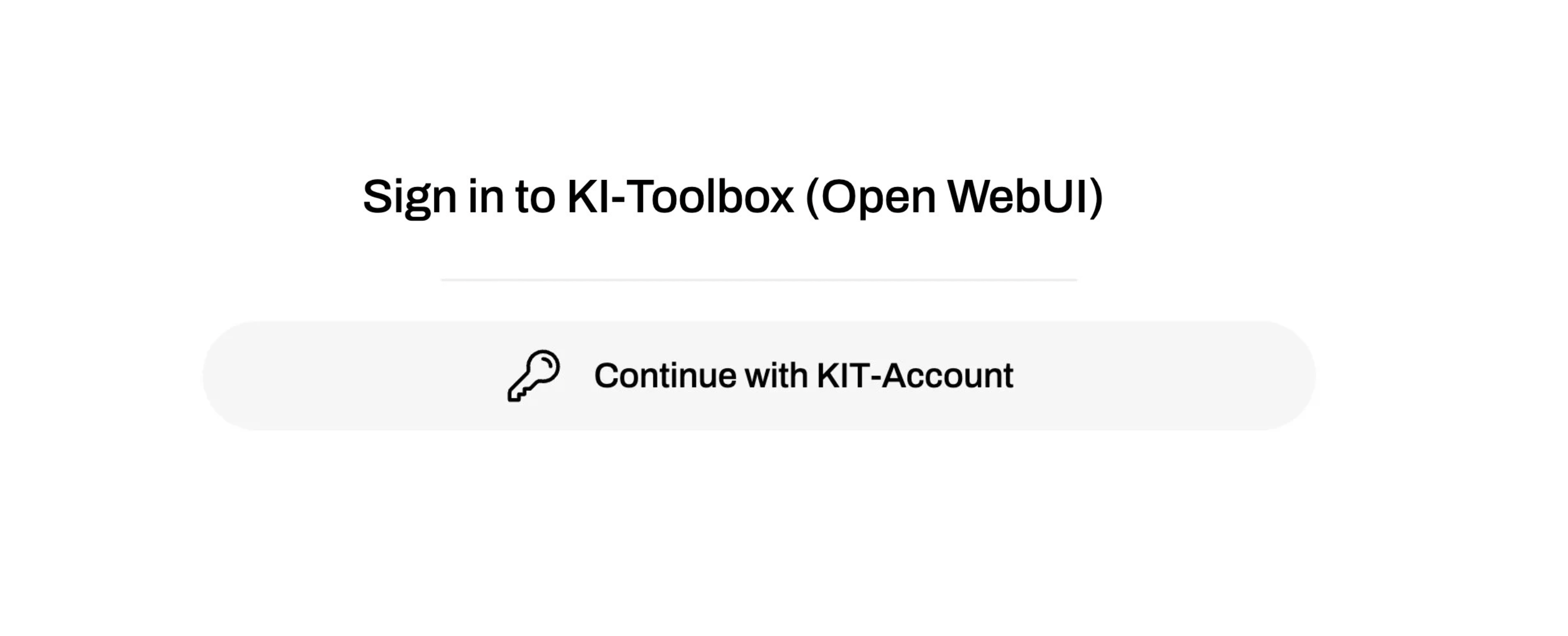
ⓘ If you are located outside the campus network (e.g. in the home office), you must currently establish an active VPN connection to KIT in order to access the interface.
Please note that you can only use the KI toolbox once you have successfully completed the AI competence module on KOALA. Access to the KI Toolbox will then be activated after approx. 5 minutes.
In the input window, you can start your chat directly with one of the available language models.
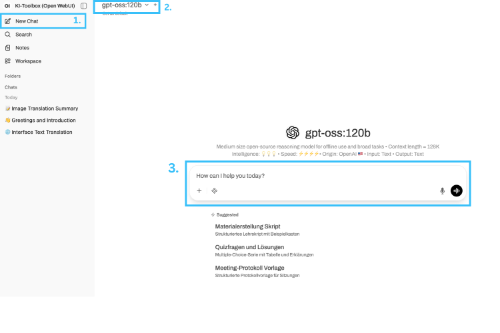
How to create a new chat:
-
You can start another new chat at any time via the menu. To do this, click on the "New chat" button in the left-hand sidebar. The main window will be emptied and is ready for your input.
-
Various models are available in the KI toolbox. Information on the strengths and use cases can be found next to or below the respective model.
-
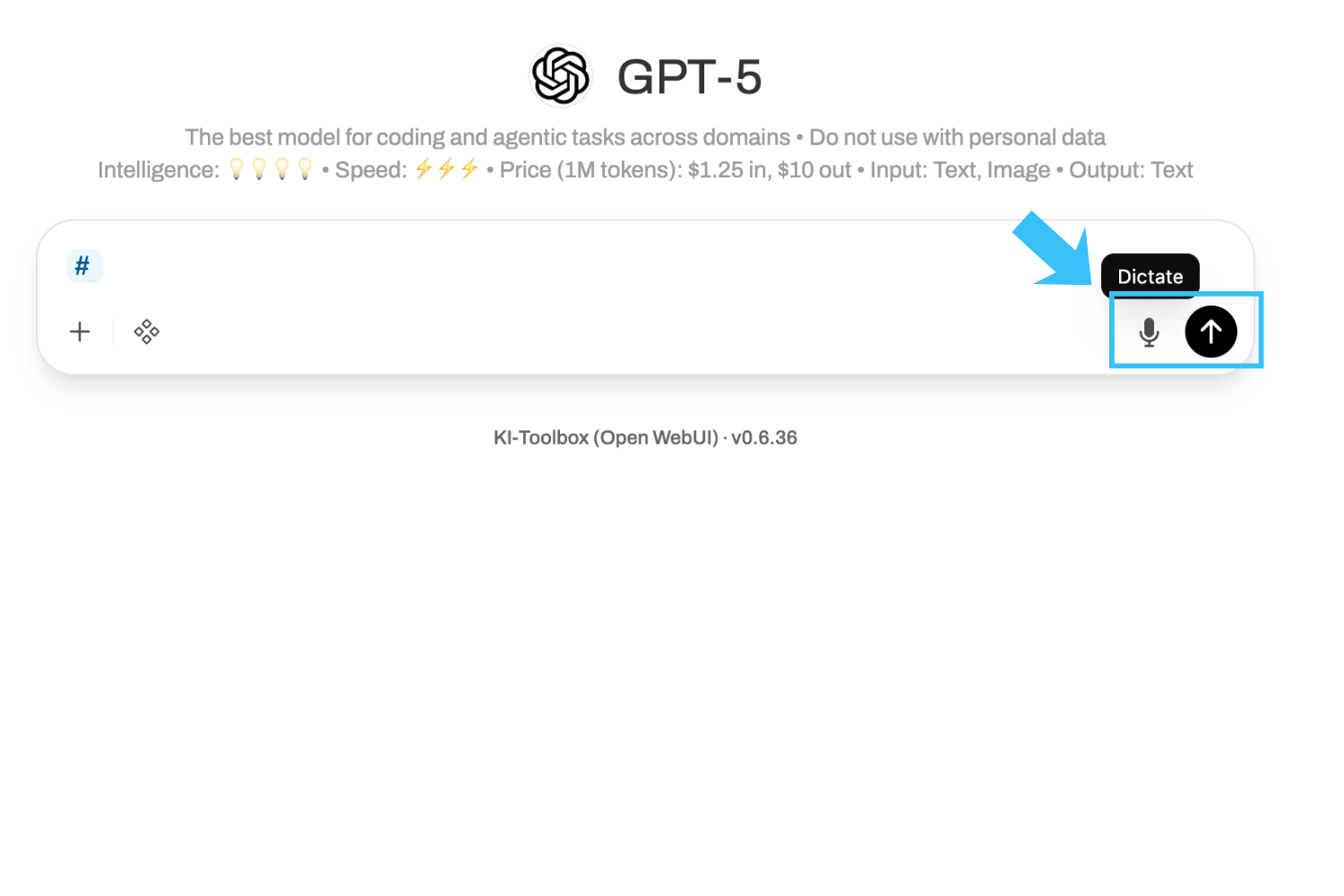
Now enter your question or instruction in the input field. Alternatively, you can also dictate your question by clicking on the microphone symbol to the right of the input field. Then press the enter key or click on the send arrow. The AI will now process your request and generate an answer in the chat window. You can continue the dialog as you wish by asking further questions. The context of the previous conversation is retained. Below the input field, you will find additional tools that extend the AI's capabilities. These may vary depending on the model selected.
A brief overview of the functions (for more information, see below or in the instructions):
-
Create and use your own prompt collections (available in the chat via / ).
-
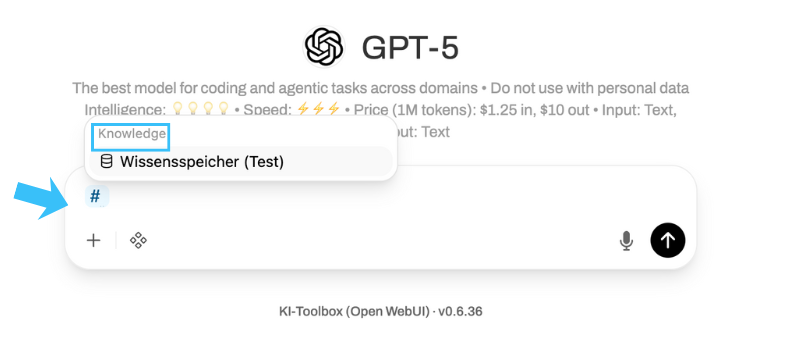
Save your own knowledge in the form of files and texts (available in the chat via #).
-
Create your own models and link them to prompts and knowledge.
-
Use voice input and output (see below).
To generate images, the Image button must be activated in the chat under Integrations. Without the switch activated, image requests are not executed.
Currently, images can only be generated with the external OpenAI models. All images created internally are based on the gpt-image-1-mini model - regardless of the model selection.
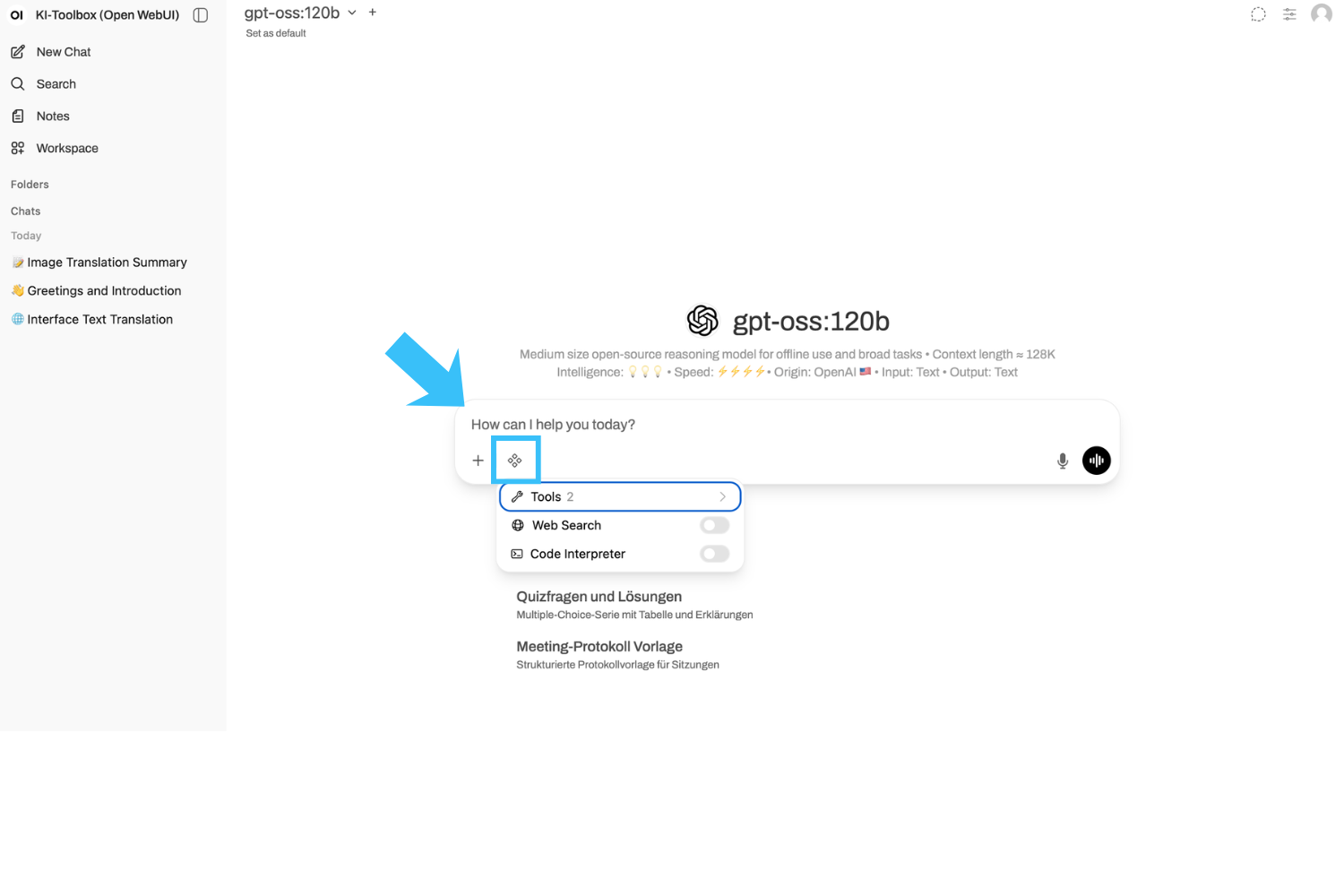
You can create questions or tasks based on files (alternatively, longer texts can also be copied into the input field). Please note that such requests take a little more time and the context length varies depending on the model.
You can upload files and images live in the chat. To do this, use the plus symbol (+) in the input window.
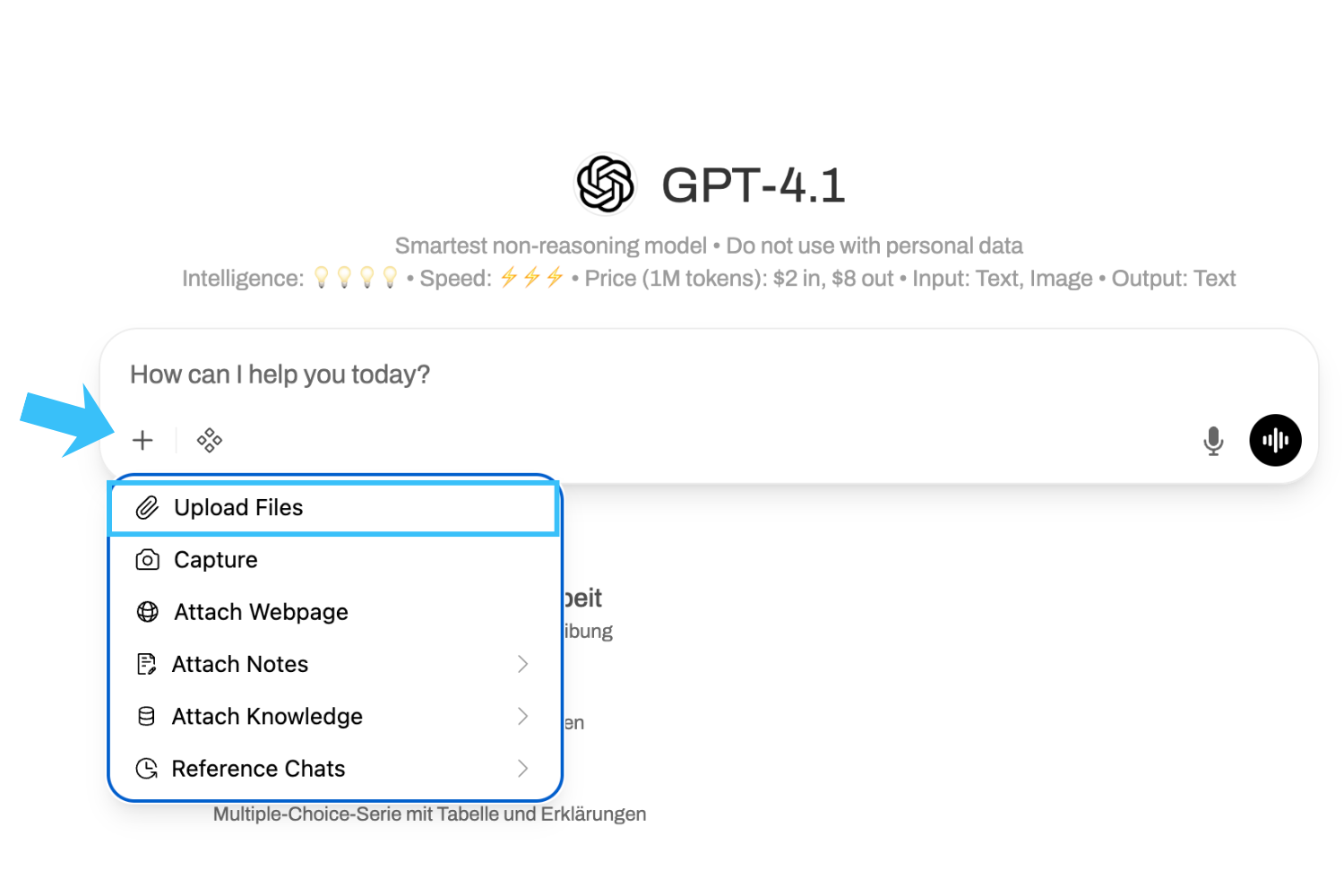
">If you use files repeatedly in your requests, it is advisable to save them permanently as "Knowledge" for you personally (see "Advanced functions").
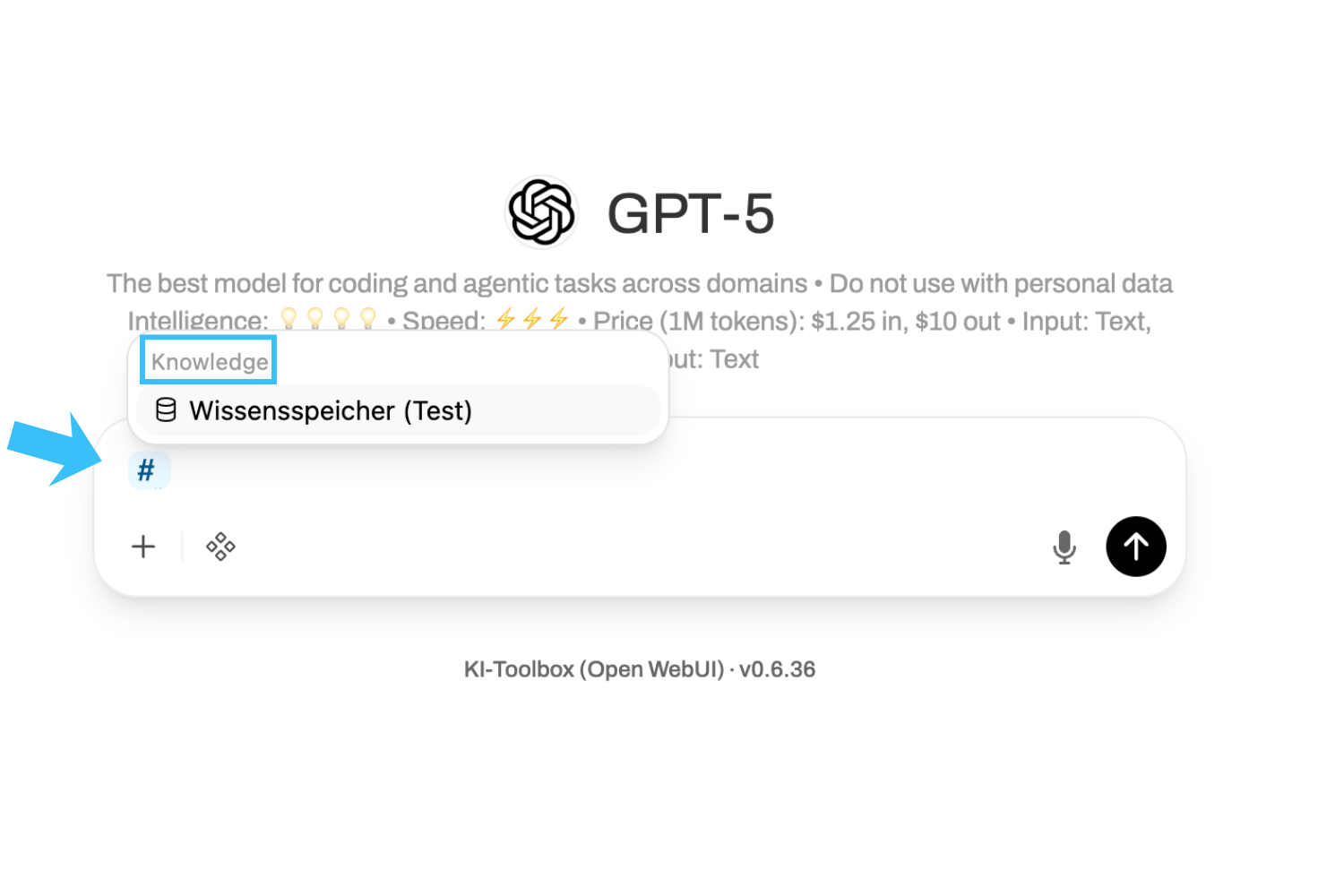
You can call up saved knowledge at any time in the input window using the hash key "#".
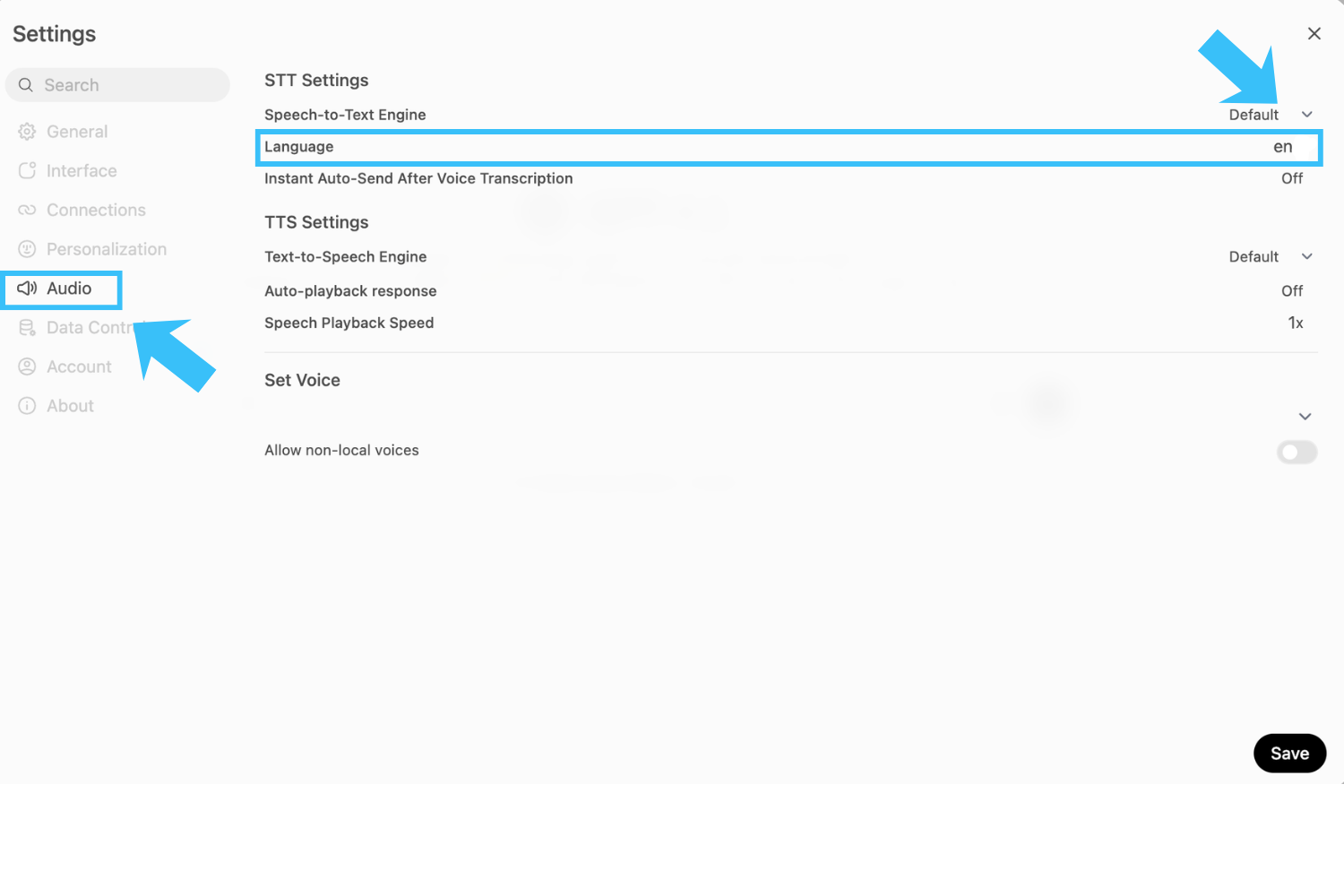
If you want to use the audio functions, it is recommended that you specify the language settings individually (usually "German"). Alternatively, automatic recognition is used, but this does not always lead to optimal results.
To do this, go to your personal settings (profile picture top left or bottom right) and navigate to "Settings" > "Audio" > "Language" and enter "de". You can leave the other values as they are. If necessary, you can set a different preference under "Set voice". Make sure that the voice matches the set language (e.g. "de" and "German").
You now have several options within a chat:
-
Dictate (microphone icon): Instead of typing entries, you can have them recorded and edit them again in writing before sending.
-
Voice mode (Soundwave icon): Here you can speak directly to the model and have the answers read out to you.
-
Read aloud: Regardless of which mode you have started a conversation in (text, dictation, speech mode), you can always activate and deactivate read aloud by clicking on the loudspeaker symbol under the AI output.
You can save frequently used prompts so that you can easily reuse them in your chats in the future.
To do this, navigate to"Workspace" >"Prompts" via the left-hand main menu
You can create new prompts using the"+ New prompt" button. Within the input mask for prompts, you can also use"Access" to select whether and with which group this prompt should be shared.

You can access the prompt stored in this way directly in the chat with a slash ("/").
%20(6).png)
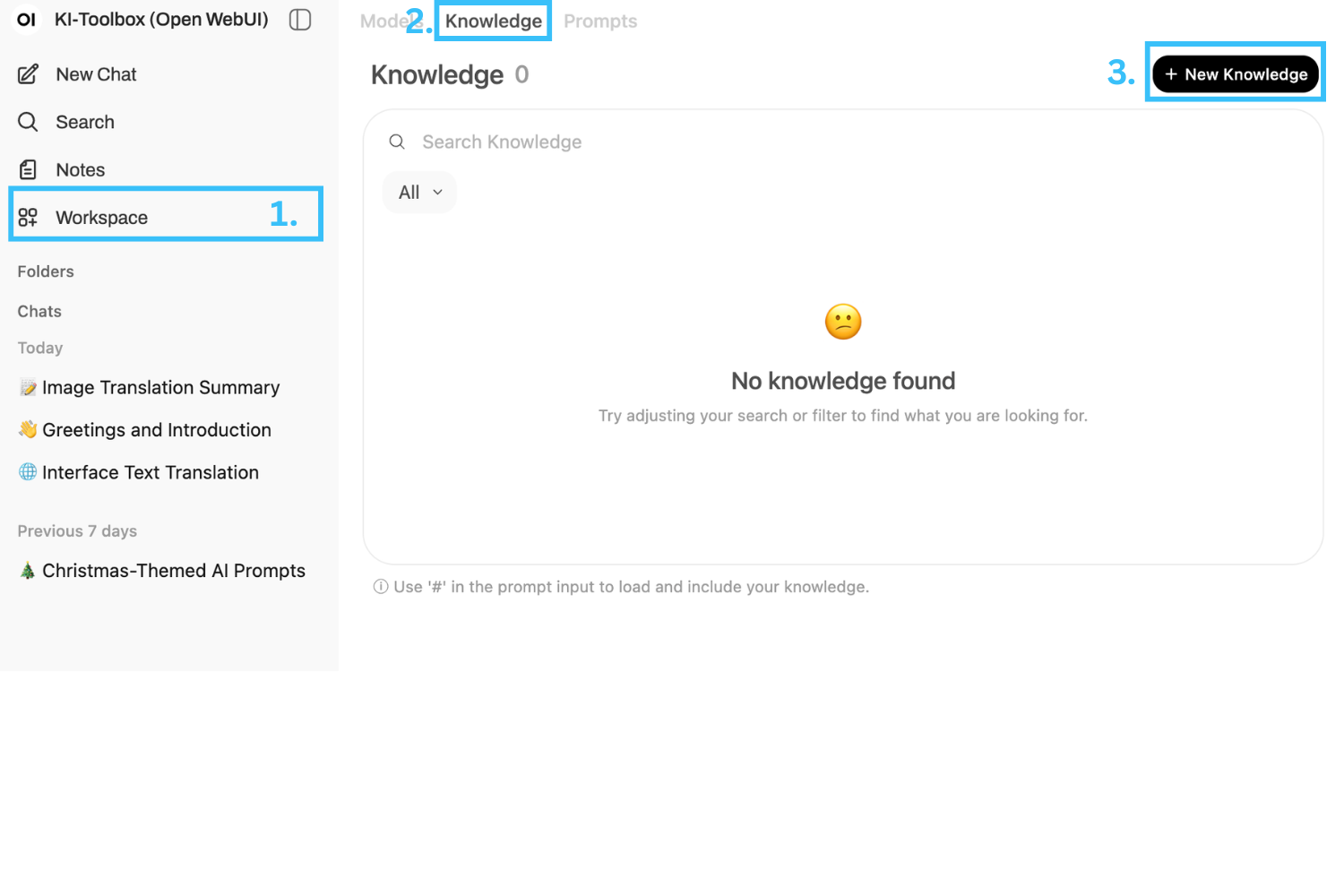
It is worth creating a knowledge store if you want to use documents repeatedly in different chats as a knowledge base. You create a kind of private library that you can access as required.
Navigate to"Workspace" >"Knowledge" via the left-hand main menu
Use the"+ New knowledge" button to create a new knowledge store, which you can fill with knowledge in the form of files or text in the next step. Enter the name and function of the knowledge store. Then click on"Create knowledge". You can now upload your documents using the plus symbol (+) on the right.

To edit an existing knowledge base, select it directly. You can then add entries within the knowledge store using the plus symbol and use "Access" to control who you want to share this store with.
You can refer directly to the knowledge created in this way in chats with the hash "#" to retrieve the saved data. The AI can then access it when processing requests.
ⓘ PDF instructions for working with documents in the KI-Toolbox
AI chatbots are digital assistants that you work with in natural language: You can ask questions, write texts, structure information or prepare tasks. The assistants respond to your instructions, remember rules and can even work with your own documents. This allows you to complete routine tasks faster and achieve consistent results.
The following core components are required for a chat assistant: an assigned knowledge store and a system prompt.
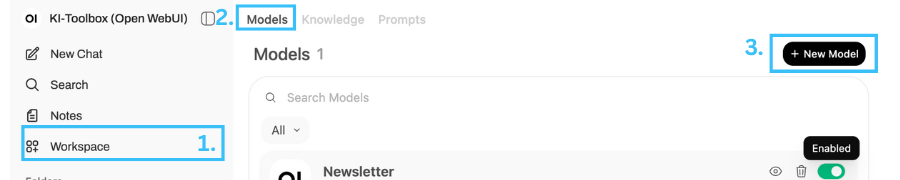
How to create your own assistant: Navigate to "Workspace" > "Models" via the left-hand main menu. You can create a new model via the "+ New model" button.
You should configure the following points in the editing screen:
- Model name*: Mandatory information.
- Basic model*: One of the available language models must be selected.
- Description: It is recommended to set a meaningful description for all subsequent users.
- Visibility: In this section, you can control whether and for whom the model is shared: privately (only for you) or specific groups to which you belong.
- Model parameters: A system prompt will be very useful for most cases. Advanced parameters are optional (depending on the use case).
- Prompt suggestions: Are optional, but can help later users to better implement the use case.
- Knowledge: In many cases, a knowledge base will be essential for the use case. If no knowledge base is required, it may not be necessary to create a custom prompt, as the use of a (saved) prompt is already sufficient in such cases. It should also be noted that if custom prompts are shared, the associated knowledge must also be shared with the same group.
- Tools: Can be added optionally depending on the use case.
- Skills: Are only to be understood as "tags". The actual rights that a user has based on a custom model depend on the selected base model.